
Settings
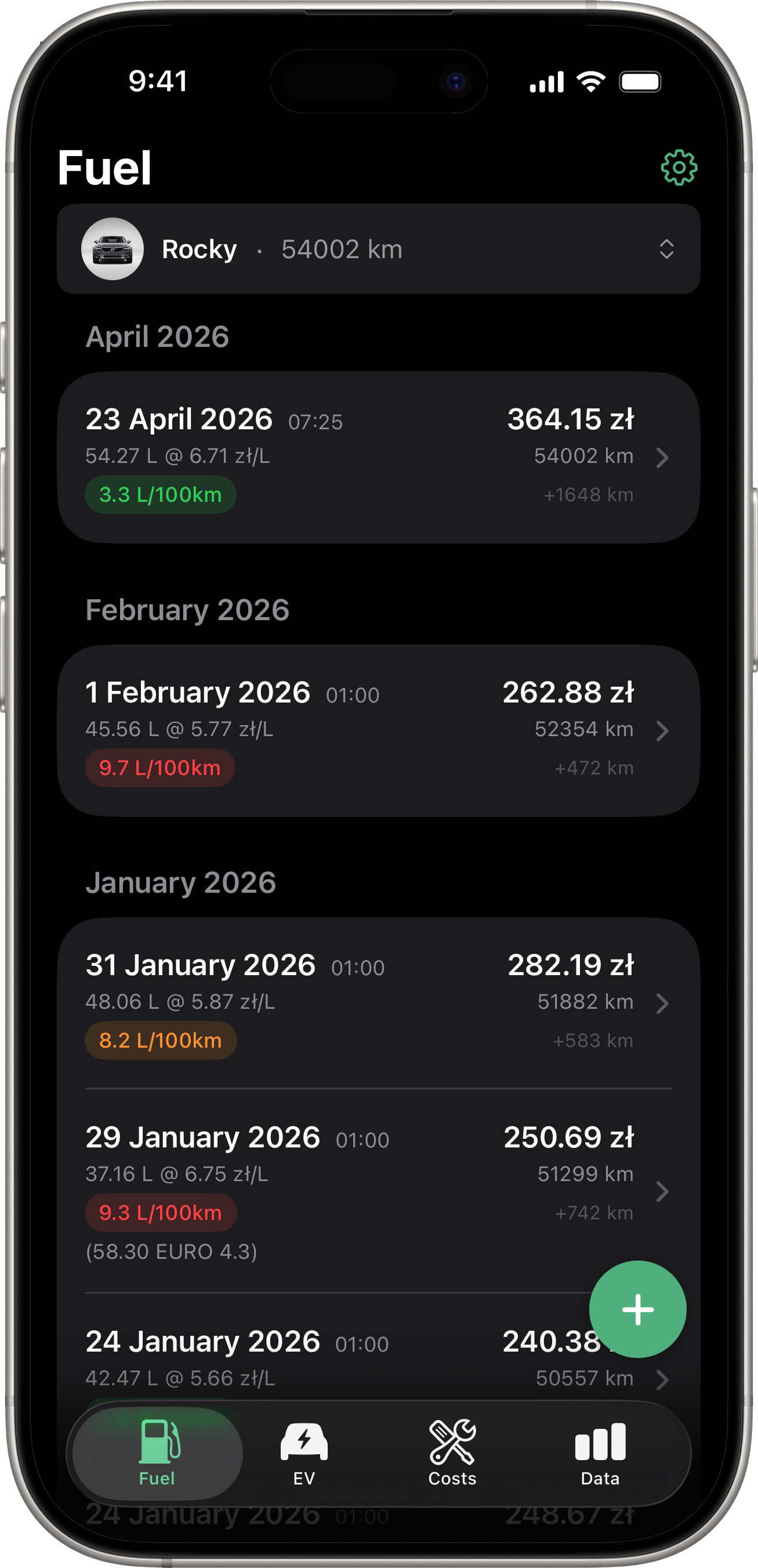
Access Settings by tapping the gear icon in the top-right corner of any tab.
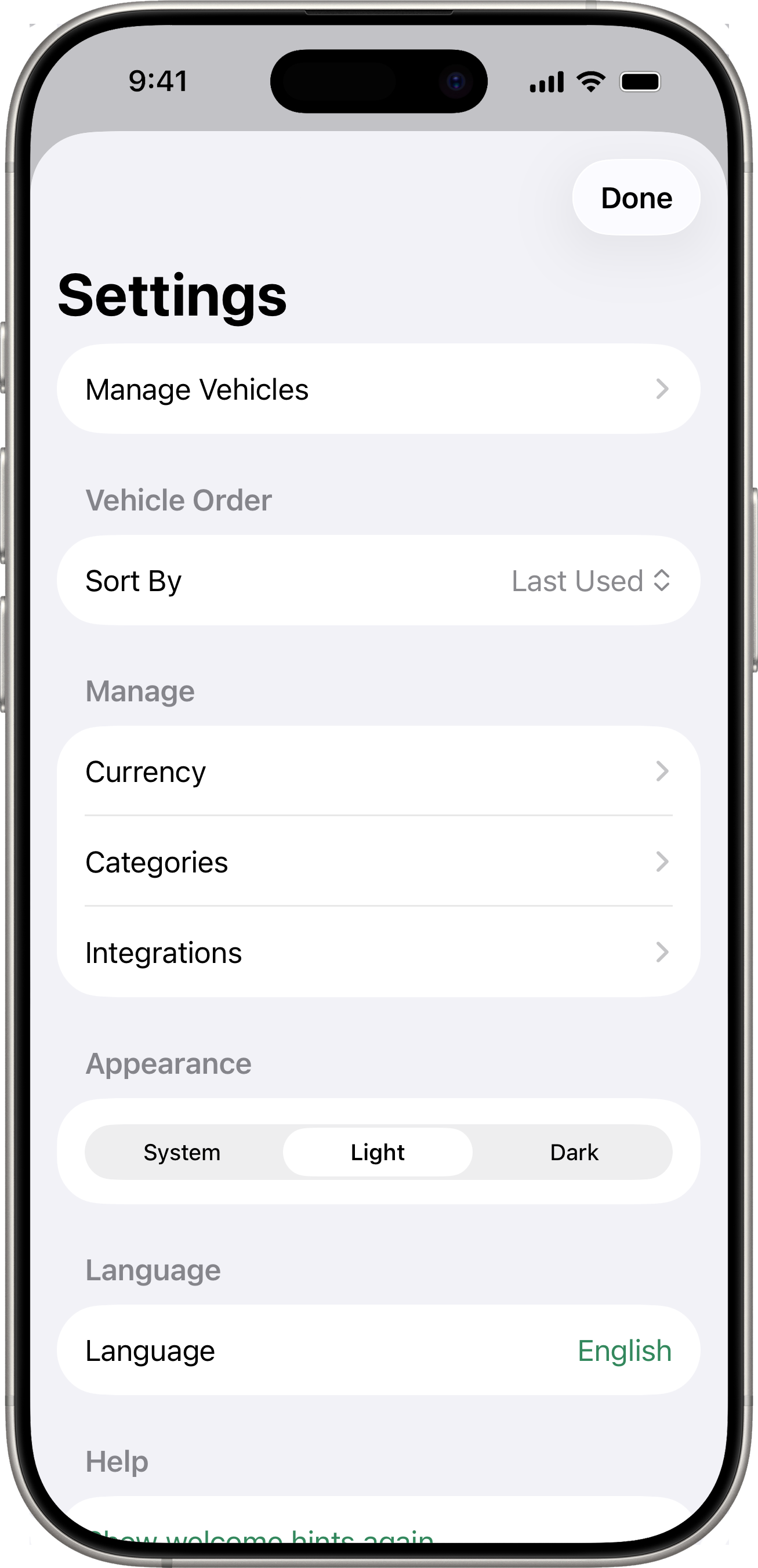
Manage Vehicles
View, edit, and delete your vehicles. Tap a vehicle to see its details, edit its information, or export/import data.
Vehicle Order
Choose how vehicles are sorted in the vehicle picker:
- Last Used — most recently used vehicle appears first.
- Name — alphabetical order.
- Created — newest first.
- Custom — drag to arrange vehicles in your preferred order.
When Custom is selected, tap Edit Order to rearrange.
Currency
Configure your default currency and additional currencies. See Currency for details.
Categories
Manage the expense categories used in cost tracking. See Cost Tracking for details.
Integrations
Connect to supported vehicle manufacturers and Apple Shortcuts. See Connected Services for details.
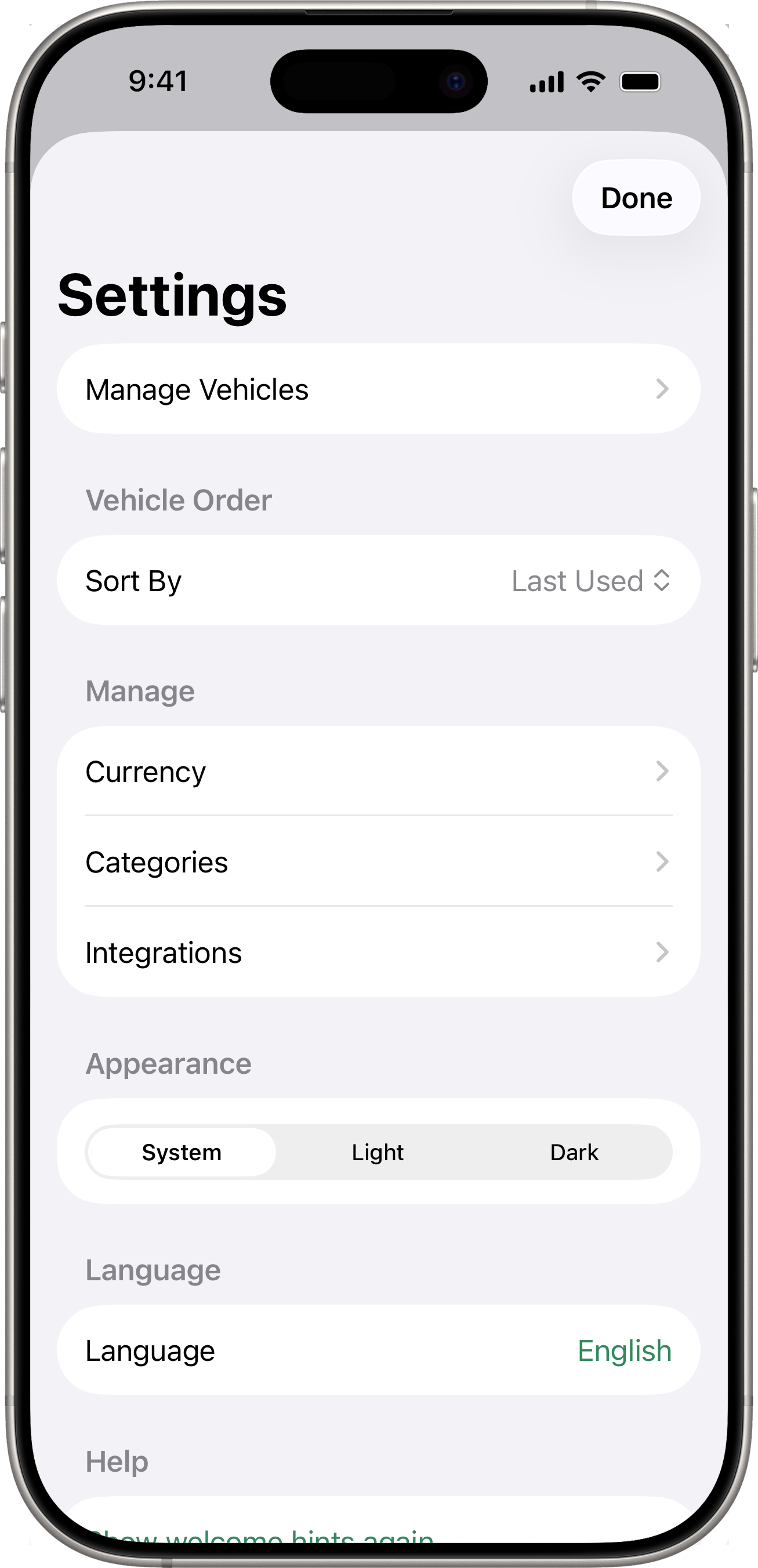
Appearance
Choose between three theme options:
- System — follows your device’s Light/Dark Mode setting.
- Light — always light.
- Dark — always dark.
Language
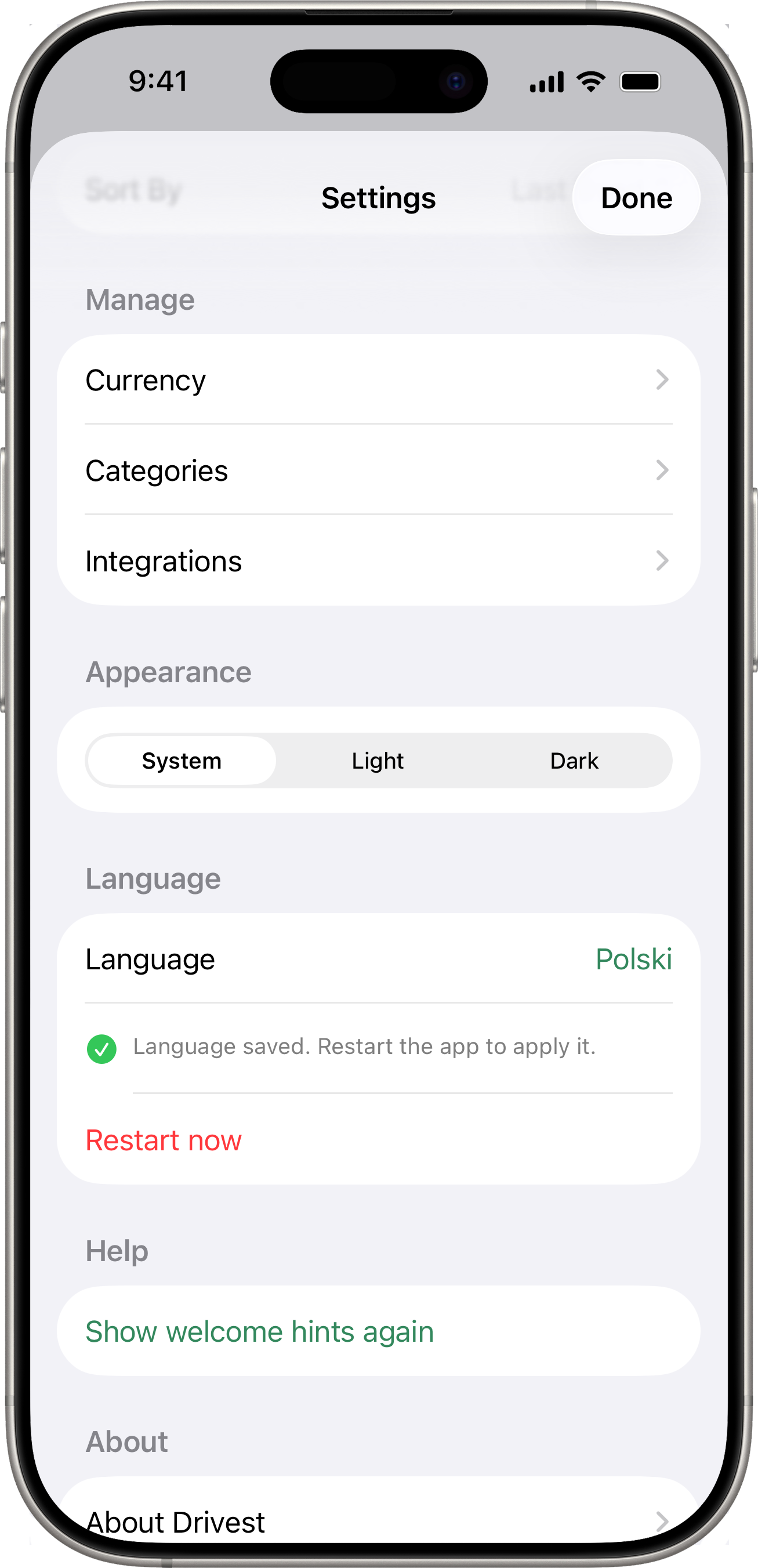
Drivest supports English and Polski (Polish). The app language follows your device language by default. To change it:
- Open Settings.
- Under Language, tap the picker and choose English or Polski.
- An inline ✅ acknowledgment appears under the picker: “Language saved. Restart the app to apply it.”
- Tap the red Restart now button to relaunch immediately, or close Settings and restart the app yourself when convenient.
The “Restart pending” indicator persists across closing/reopening Settings and across foreground/background cycles until you actually restart and the new language is applied — so even if you tap Done without restarting, the next time you open Settings the reminder is still there.
Help
Show welcome hints again
The welcome coachmarks (Settings gear, Currency row, EV ➕ button, Latest Reading card, Location row gestures) self-dismiss the first time you perform the gesture they describe. To bring them back:
- Settings → Help → Show welcome hints again.
- An inline ✅ “Hints will reappear after you restart the app.” plus a red Restart now button.
- Tap Restart now (or quit the app yourself).
On the next launch, Drivest wipes the tip state datastore before TipKit configures itself, so every coachmark is fresh again.
Why the restart?
Tips.resetDatastore()only takes effect when called beforeTips.configure(). Drivest sets a UserDefault flag on tap and honours it on the next launch.
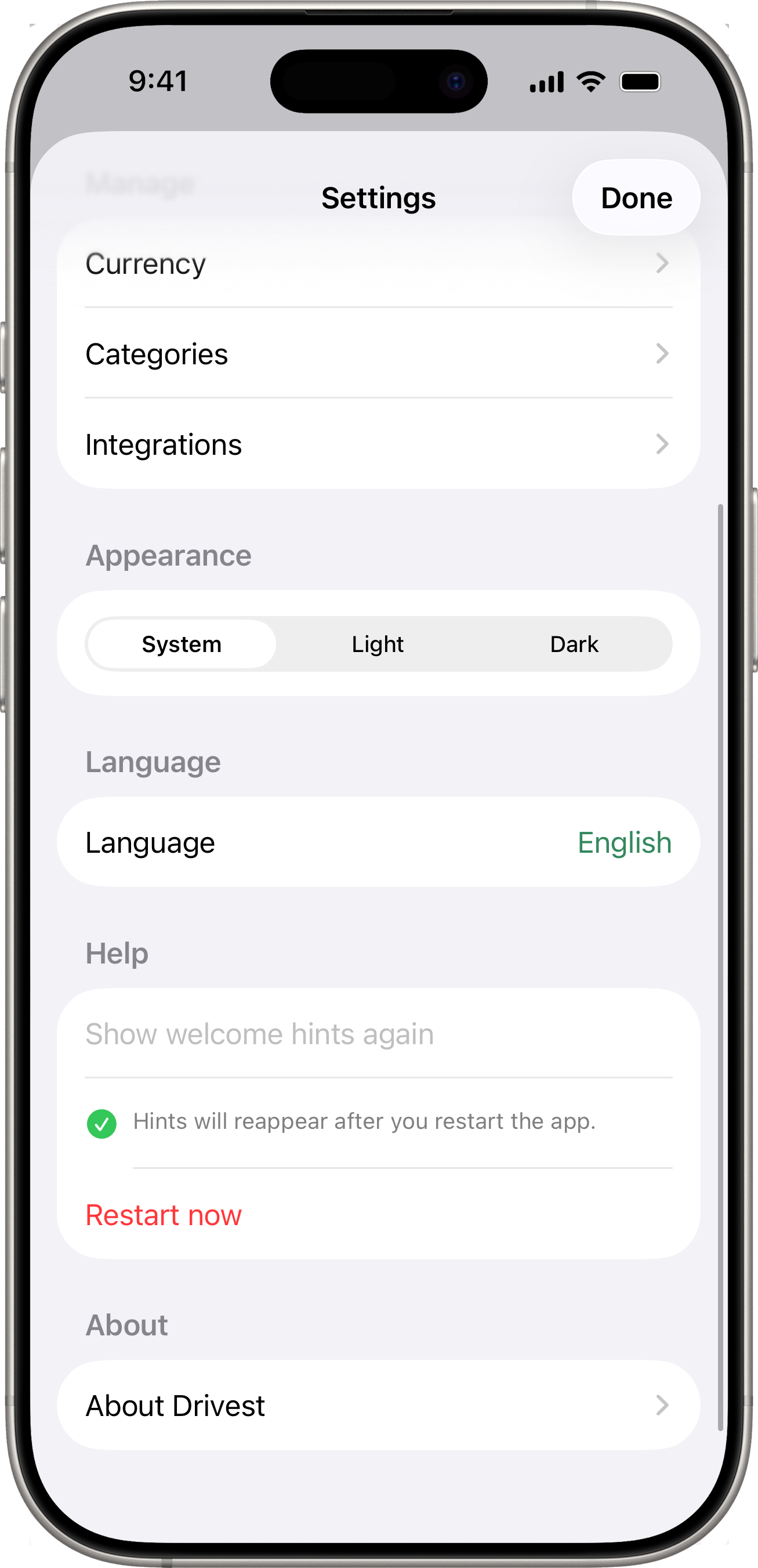
About
View the app version, developer information, and links to:
- The Drivest website
- GitHub repository
- Privacy Policy
- MIT License