EV Features
If any of your vehicles is set to the EV fuel type (either as the primary or second tank), an EV tab appears in the app.
Electricity Bills
Track your home charging costs by logging electricity bills.
- Go to the EV tab.
- Tap the + button.
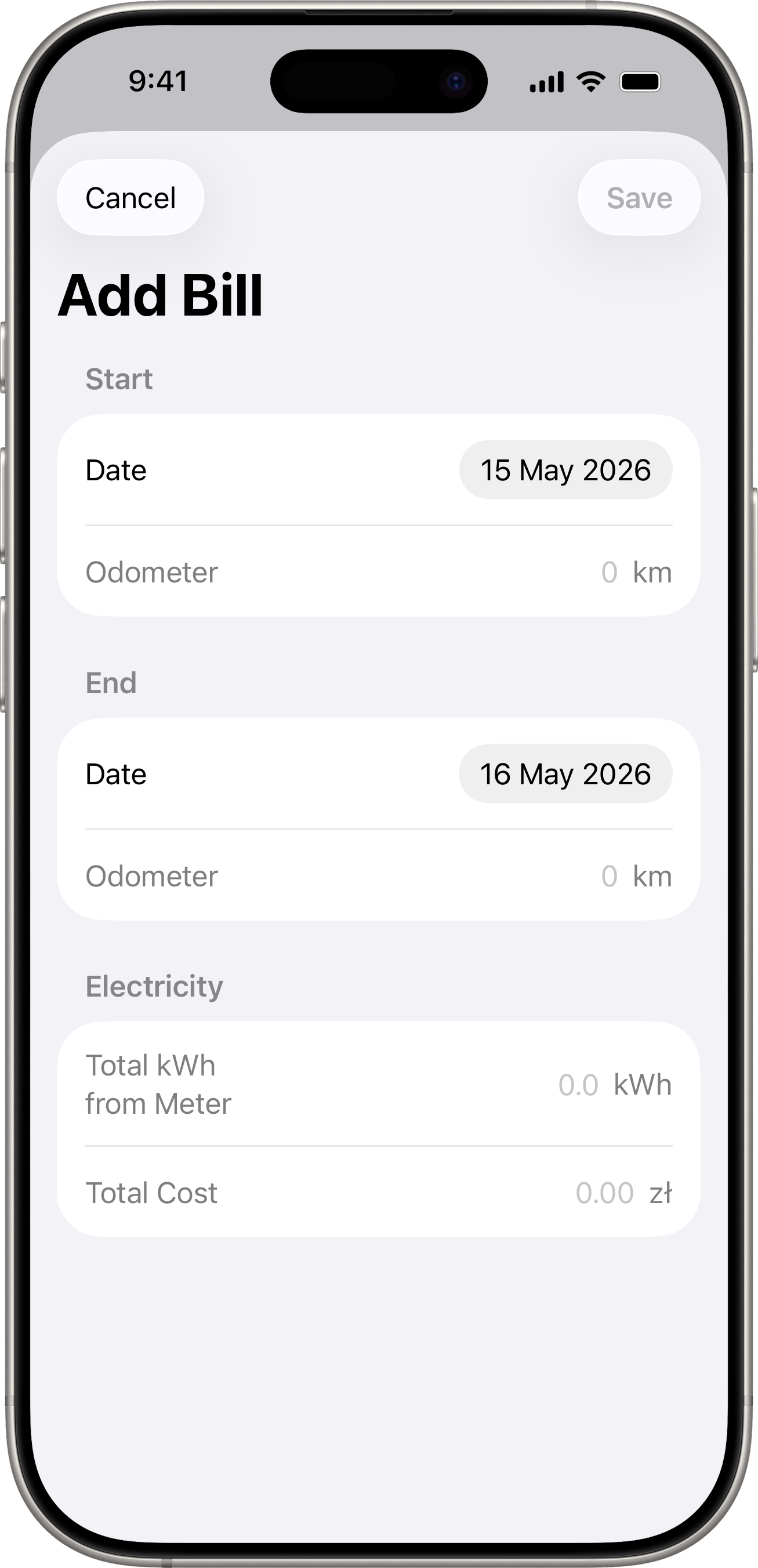
- Enter the bill details, grouped into three sections:
- Start — the period’s start Date and, optionally, the Odometer reading on that date.
- End — the period’s end Date and, optionally, the Odometer reading on that date.
- Electricity — Total kWh from Meter and Total Cost for the billing period.
- Tap Save.
Odometer prefill
If a connected-service snapshot (Volvo or Toyota) was captured on the exact calendar day you select for Start or End, the matching Odometer field is filled in automatically using the vehicle’s distance unit. If no snapshot exists for that day, the field stays empty and you can type the reading yourself. Any value you type takes precedence and won’t be overwritten if you change the date afterwards.
How distance is calculated
When both Start and End odometers are filled in (manually or via prefill), the bill uses them directly to compute distance, kWh / 100 km, and cost per km. If either field is empty, the app falls back to its automatic snapshot reconciliation against the previous bill — see Snapshot History below.
In-Progress Periods
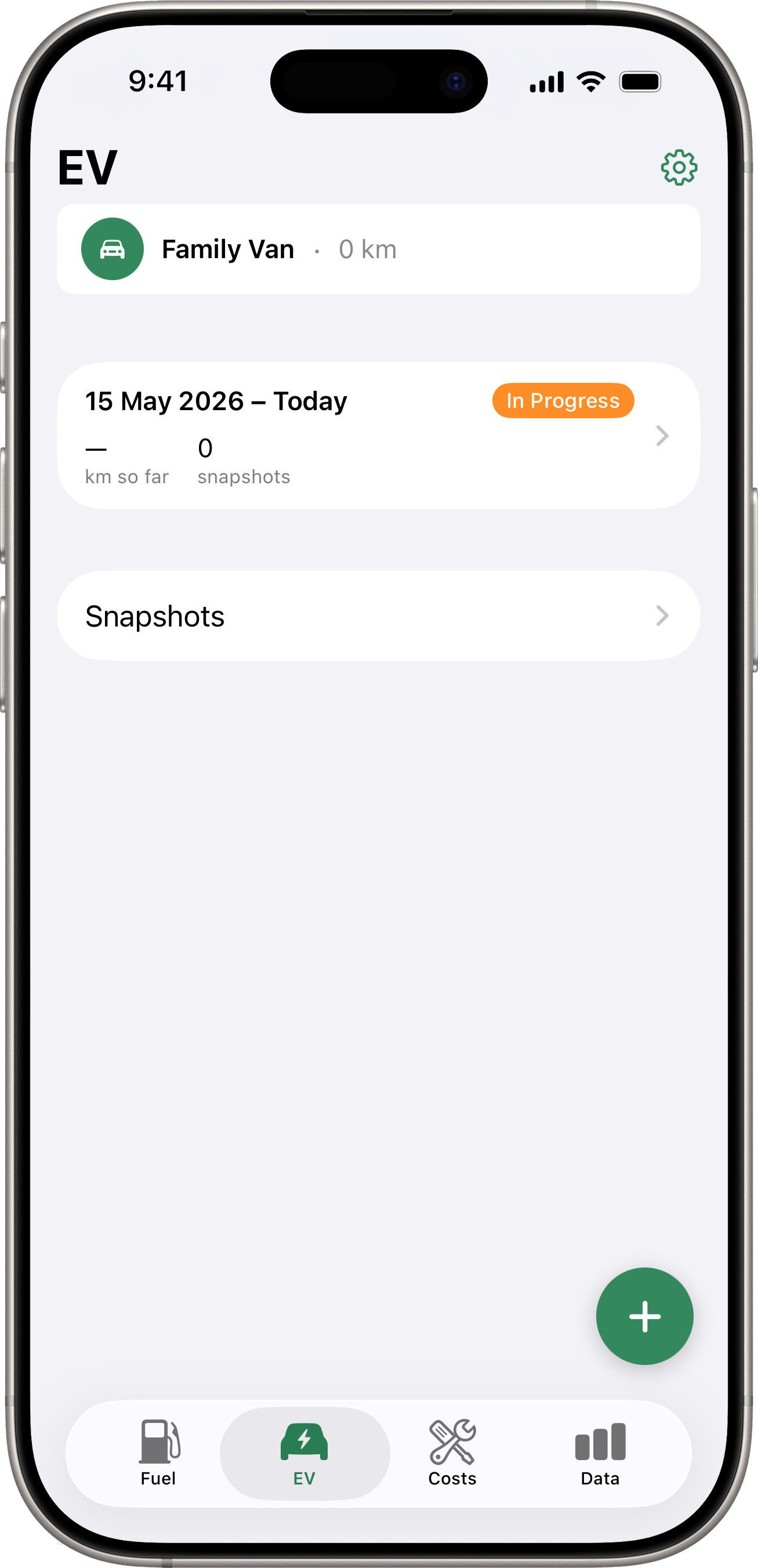
The EV tab shows the current billing period at the top if there is an electricity bill in progress. Tap it to see details for that period.
Sync Failure Banner
If the app fails to sync odometer data from a connected service multiple times in a row, a warning banner appears at the top of the screen. Reconnect the integration from Settings > Integrations to resolve the issue.
EV Stats on the Data Tab
When a vehicle is EV-enabled, the Data tab shows an EV snapshot card with average kWh/100km, last kWh/100km, and the most recent cost per kWh — alongside a Fuel card if the vehicle also has a combustion tank (plug-in hybrid). See Data → Vehicle Snapshot Card for details.
Snapshot History
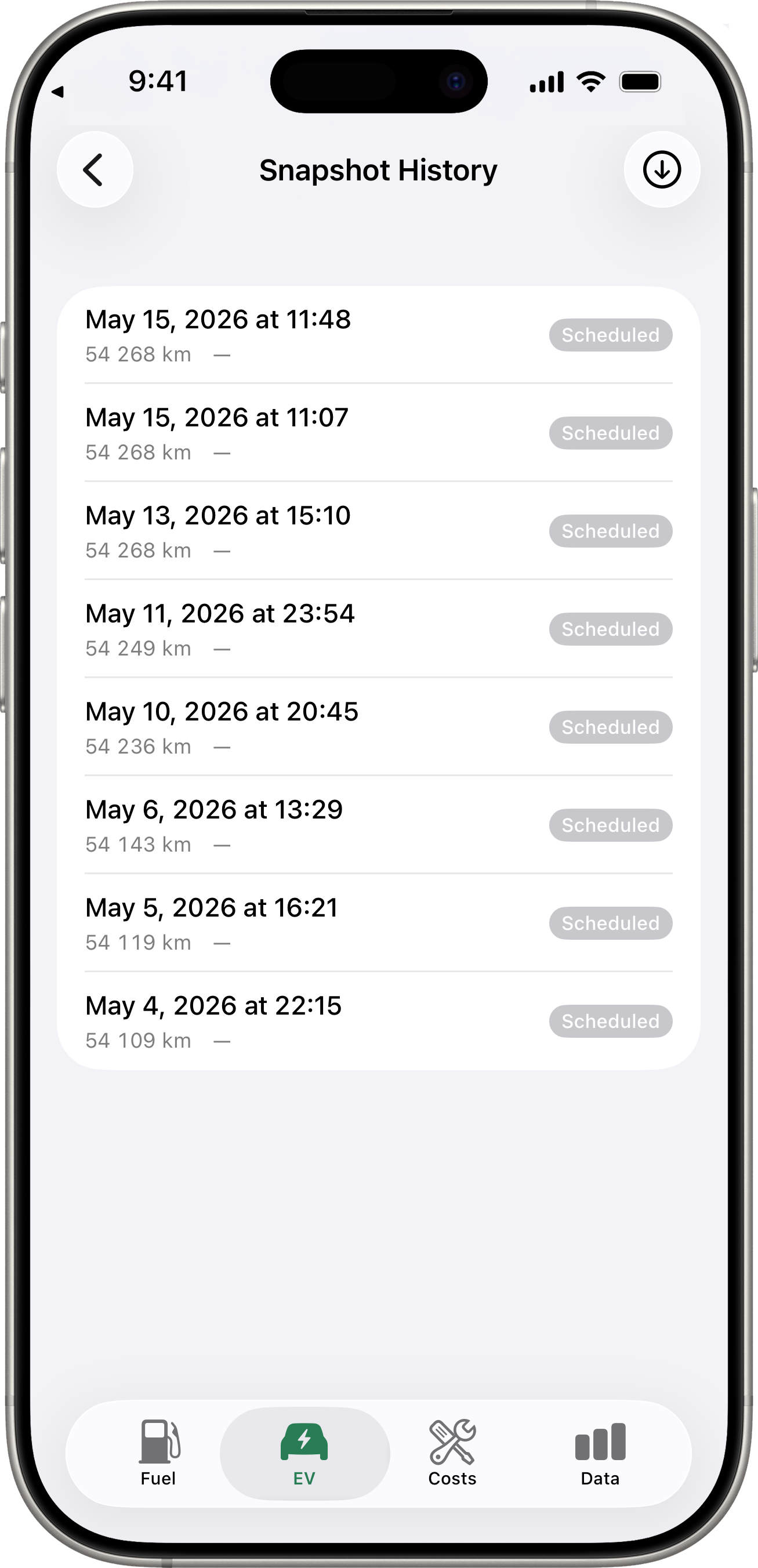
For connected vehicles (Volvo, Toyota), each automatic fetch records an energy snapshot with the odometer and battery state of charge at that moment. Open the EV tab → period card → snapshot history list to see each row. Badges indicate how the fetch was triggered:
- Scheduled (grey) — a routine background or Shortcuts fetch that succeeded.
- Manual (accent) — a user-triggered fetch.
- Failed (red) — a fetch attempt that didn’t produce a snapshot. The row’s subtitle shows the reason — typically a transient API error, a missing/expired integration token, or a “Keychain locked” message when a background fetch fired before the device had been unlocked after a reboot. See Connected Services → Reliability.
Requirements
- At least one vehicle must have its fuel type set to EV (either as primary fuel type or as a second tank).