Cost Tracking
← All Documentation (v1.1)
You're viewing the docs for Drivest v1.1. View the latest documentation.
Adding a Cost
- Go to the Costs tab.
- Tap the + button.
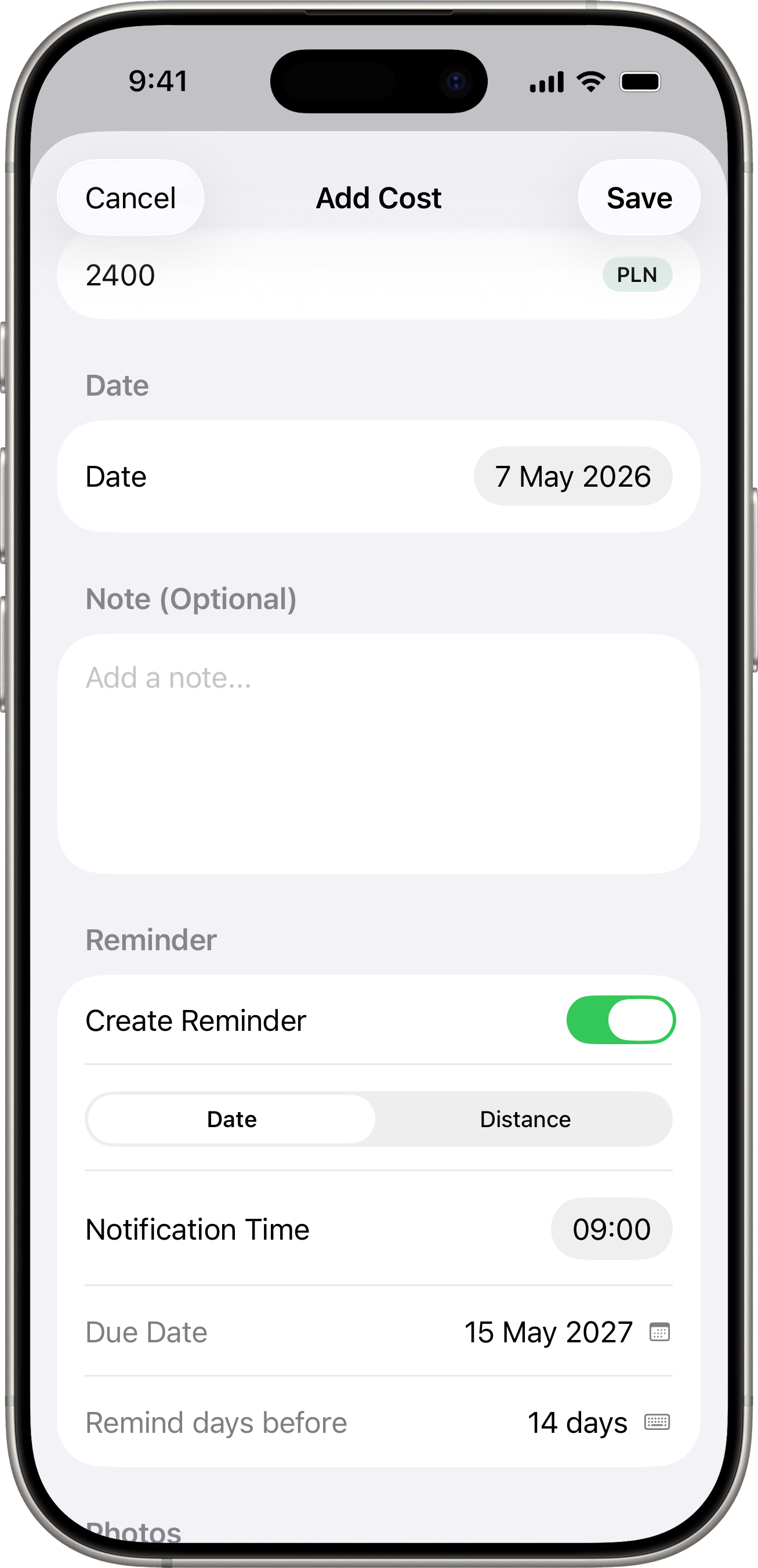
- Fill in the details:
- Category — select a category (e.g. Insurance, Service, Tolls, Wash, Parking, Maintenance, Tickets).
- Amount — the cost amount.
- Date — when the expense occurred.
- Note — optional description.
- Reminder — optionally create a reminder for this expense (see Reminders).
- Photos — attach photos of receipts or documents.
- Files — attach document files.
- Tap Save.
Categories
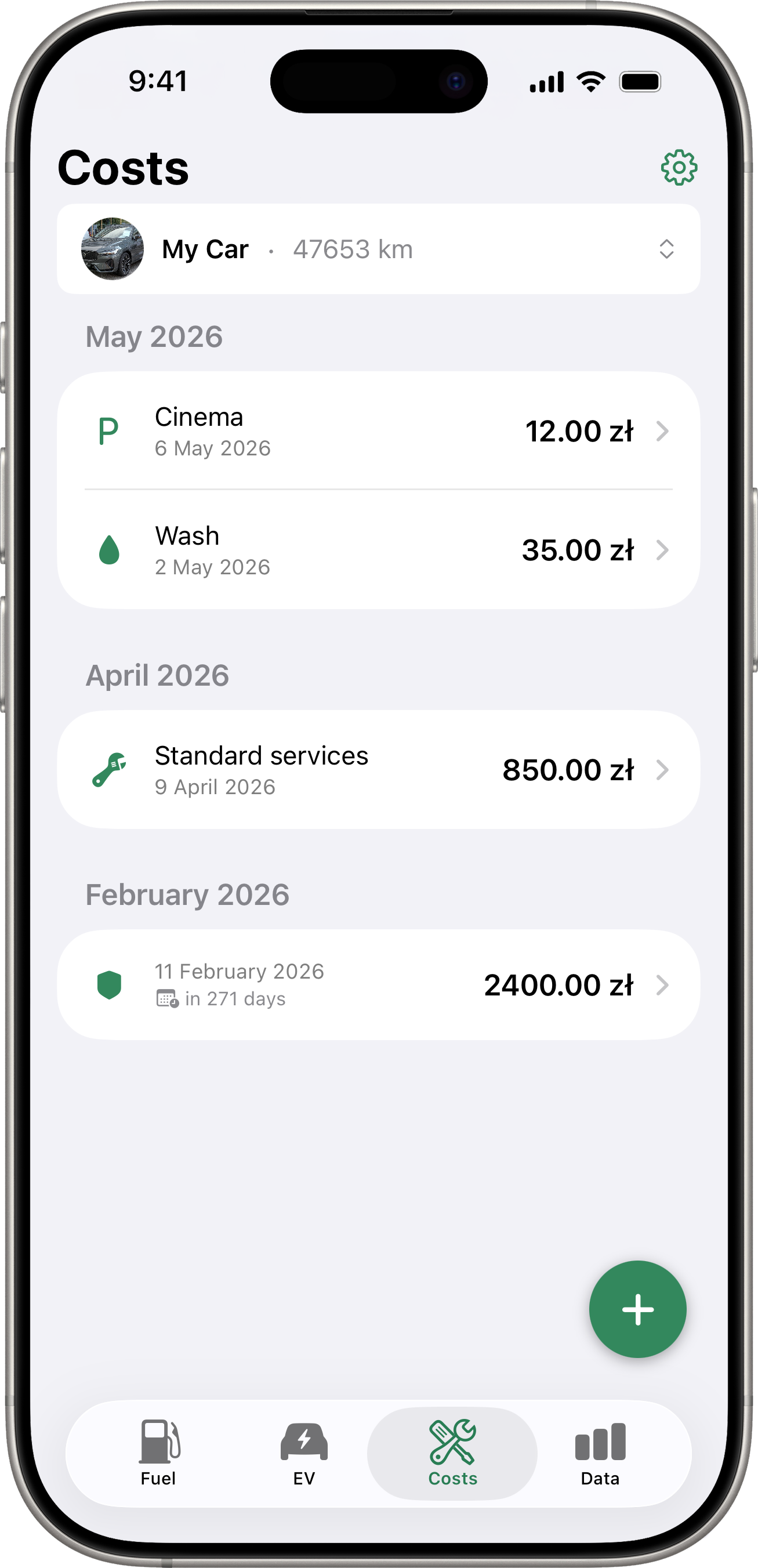
The app comes with built-in categories:
- Insurance
- Service
- Tolls
- Wash
- Parking
- Maintenance
- Tickets
Custom Categories
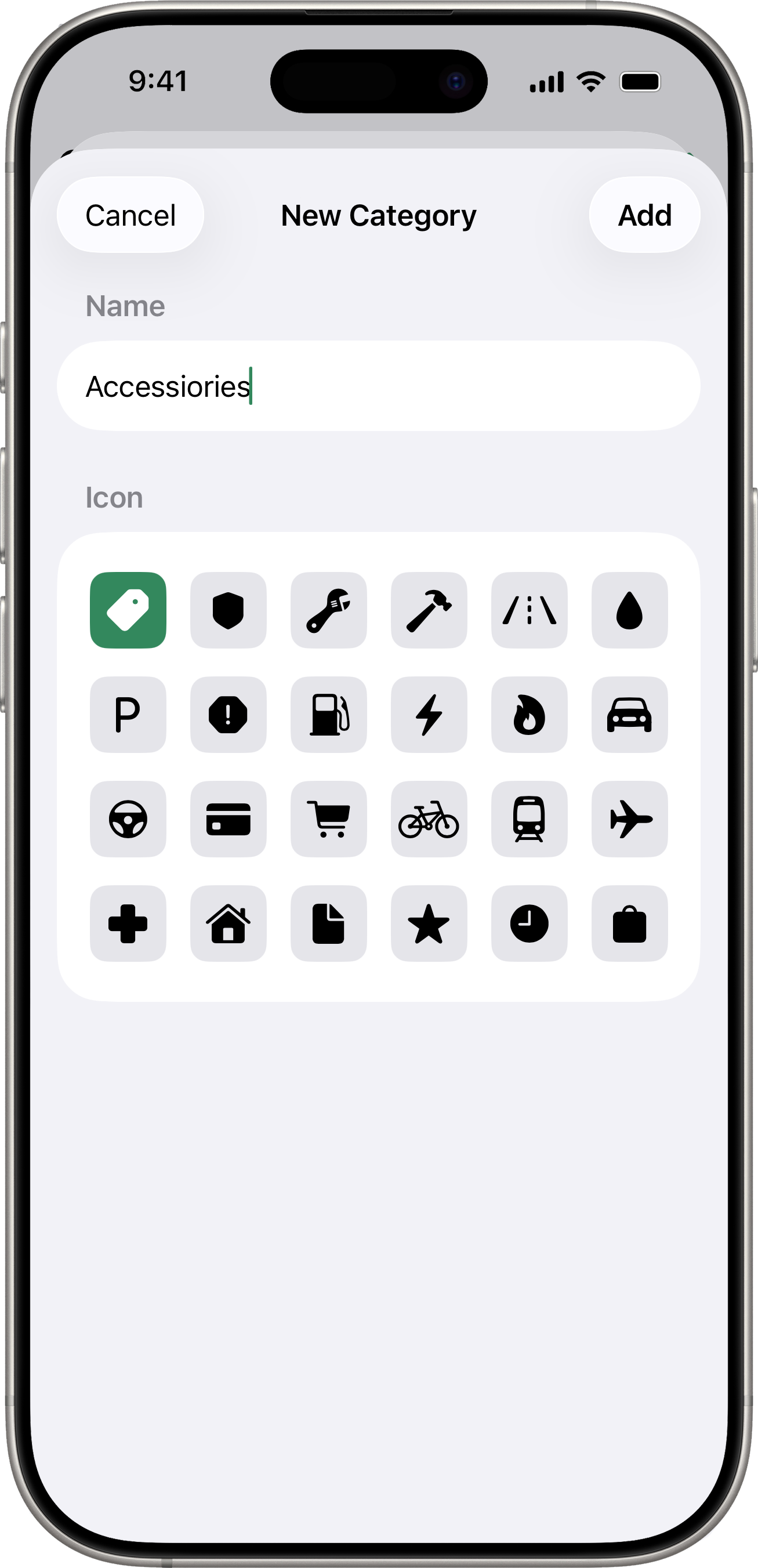
You can create your own categories and reorder or delete existing ones:
- Go to Settings > Categories.
- Tap + to add a new category.
- Enter a name and choose an icon.
- Tap Add.
To reorder categories, tap Edit and drag them into your preferred order. To delete a category, swipe left or use the Edit mode.
Multi-Currency Support
If you have multiple currencies configured, a currency selector appears next to the amount field. The cost will be recorded with the selected currency and its exchange rate.
Editing and Deleting
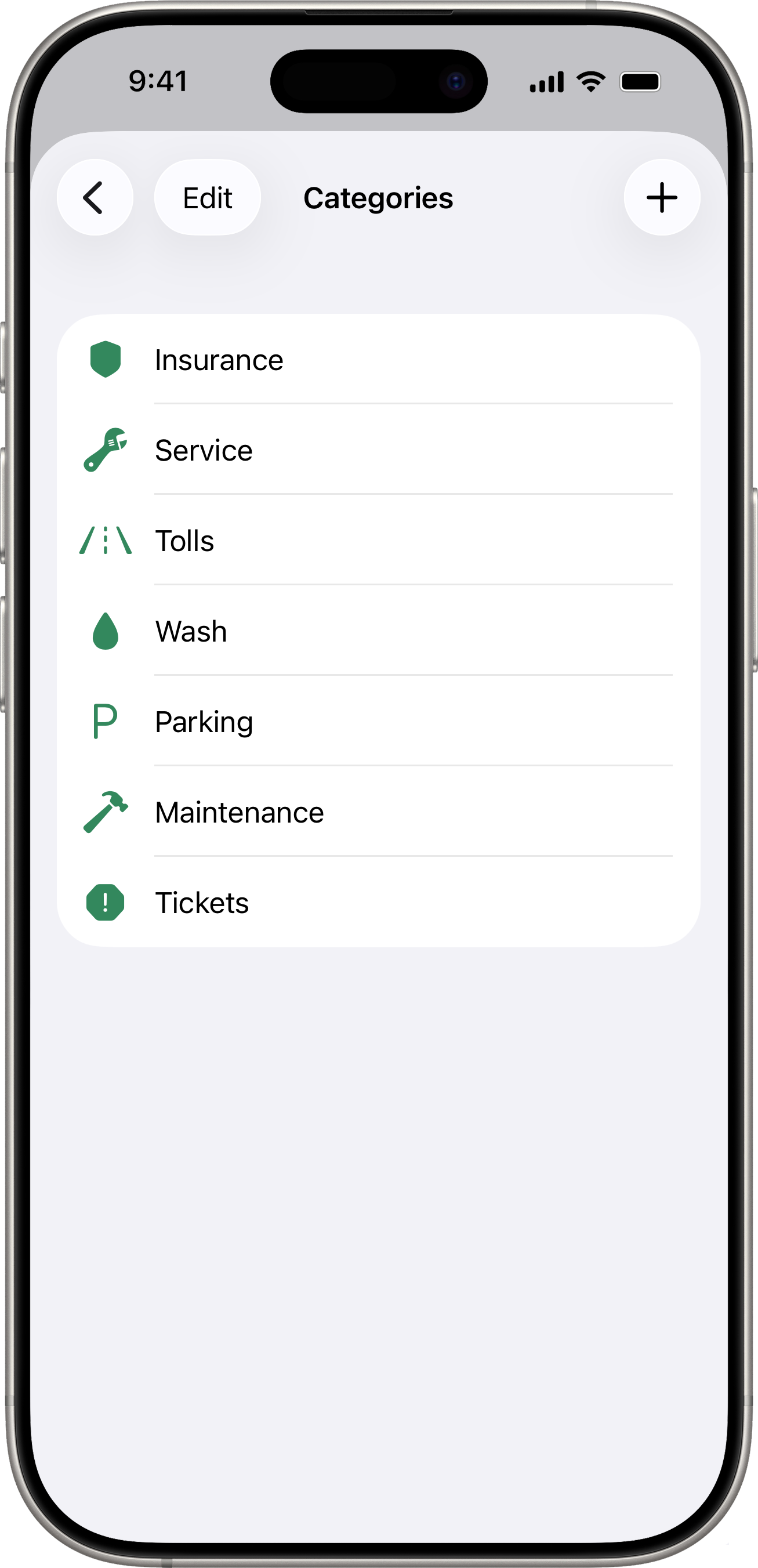
- Tap any cost entry in the list to view its details.
- Swipe left on a cost entry to delete it.