Connected Services
Drivest can connect to supported vehicle manufacturers to automatically fetch odometer readings.
How It Works
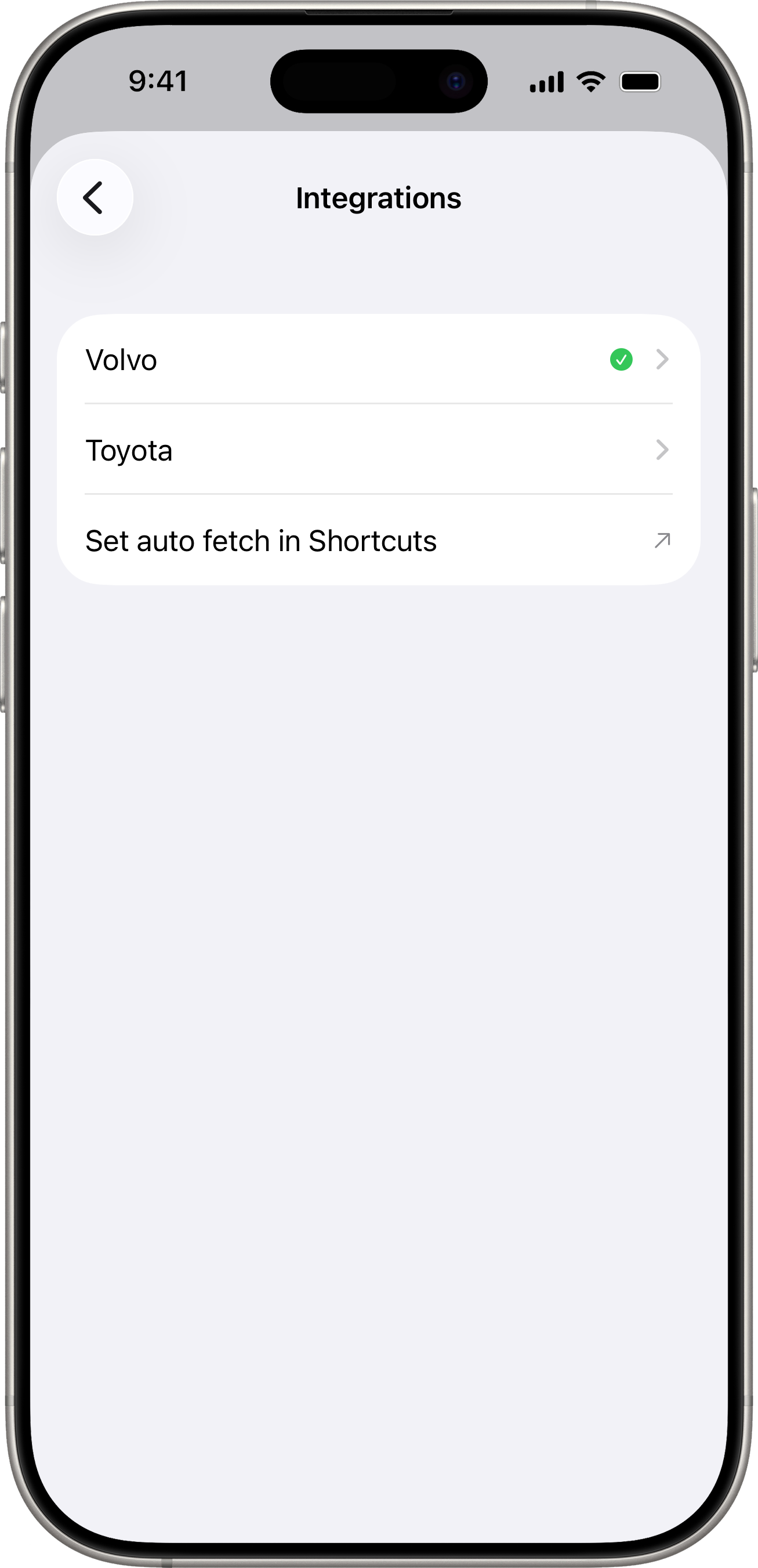
Some vehicle brands offer official APIs that allow Drivest to read your odometer remotely. The list of supported manufacturers is shown in Settings > Integrations.
Setup
- Go to Settings > Integrations.
- Select your vehicle’s manufacturer.
- Sign in with your manufacturer account credentials.
- The app authenticates directly with the manufacturer — your password is never stored by Drivest.
- An authentication token is stored securely in your device’s Keychain.
What It Does
- Odometer fetch — when adding a fill-up, tap the download button next to the odometer field to pull the latest reading from your vehicle.
Requirements
- Your vehicle’s Make must match a supported manufacturer.
- A valid VIN must be entered in the vehicle settings.
- You need an account with the manufacturer, with the vehicle linked.
Disconnecting
Go to Settings > Integrations, select the manufacturer, and sign out. This removes the stored token from your Keychain.
Apple Shortcuts Integration
Drivest provides a Fetch Odometer action for Apple Shortcuts. This lets you automate data collection — for example, you can create a Shortcut that fetches your vehicle’s odometer on a schedule.
To set up:
- Go to Settings > Integrations.
- Tap Set auto fetch in Shortcuts to open the Shortcuts app.
- Create a new Shortcut using the Fetch Odometer action provided by Drivest.
This is useful for keeping your odometer readings up to date without manually opening the app.
Setting up a scheduled automation
To make the fetch run on its own, wrap the Fetch Odometer action in a Personal Automation:
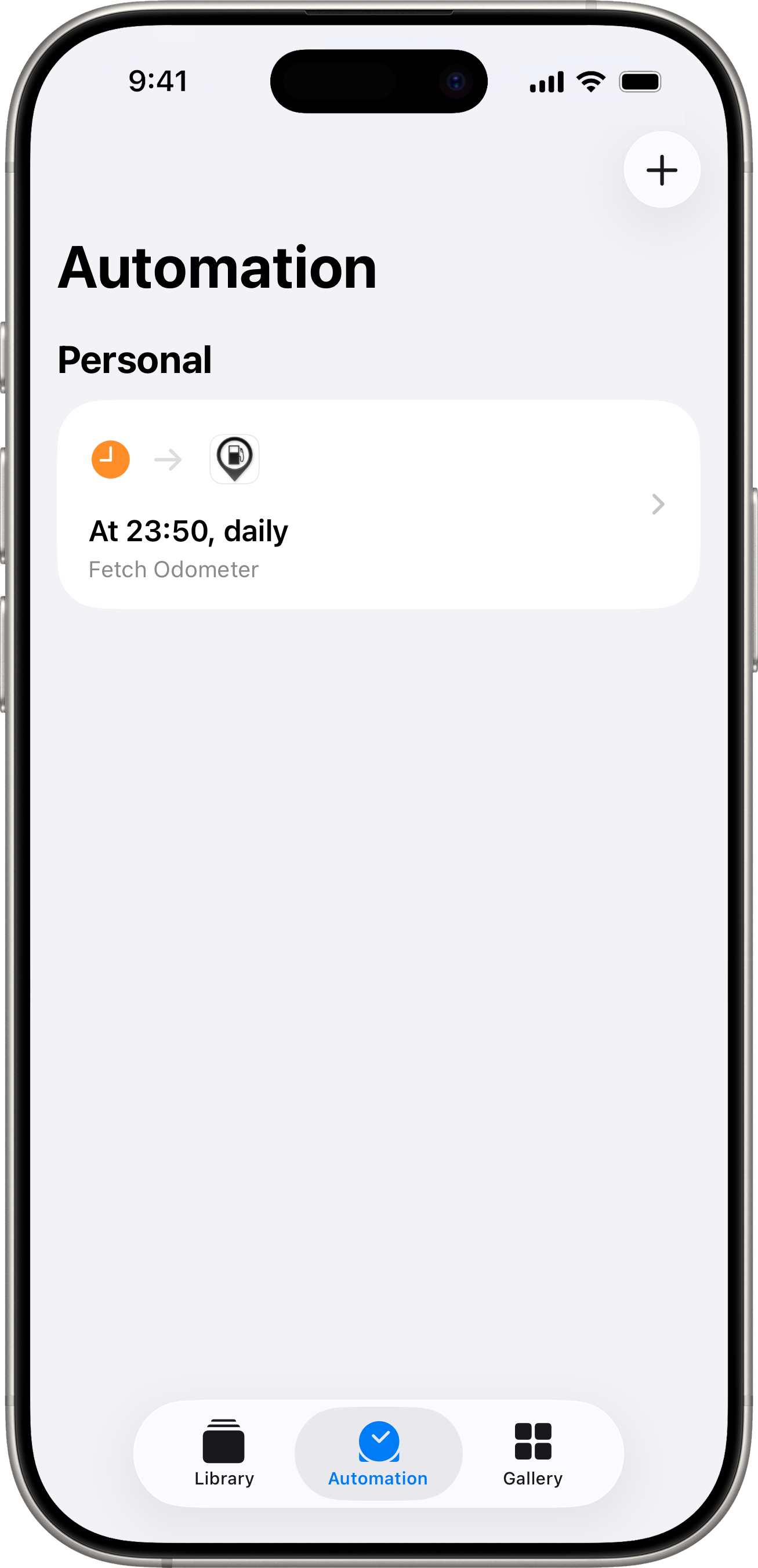
- Open the Shortcuts app and switch to the Automation tab.
- Tap + in the top right and choose New Automation.
- Pick a trigger — common choices are:
- Time of Day — for example, every day at 23:00, so a fresh reading is ready each morning.
- Arrive / Leave — fetch when you arrive home or leave work.
- CarPlay — fetch each time you disconnect from CarPlay (end of trip).
- After choosing the trigger, tap Next and then New Blank Automation.
- Tap Add Action, search for Fetch Odometer, and add it.
- Tap the action to select the Vehicle you want to update. Repeat the action for each vehicle if you own more than one.
- Turn Run Immediately on so the automation fires without a notification prompt, then tap Done.
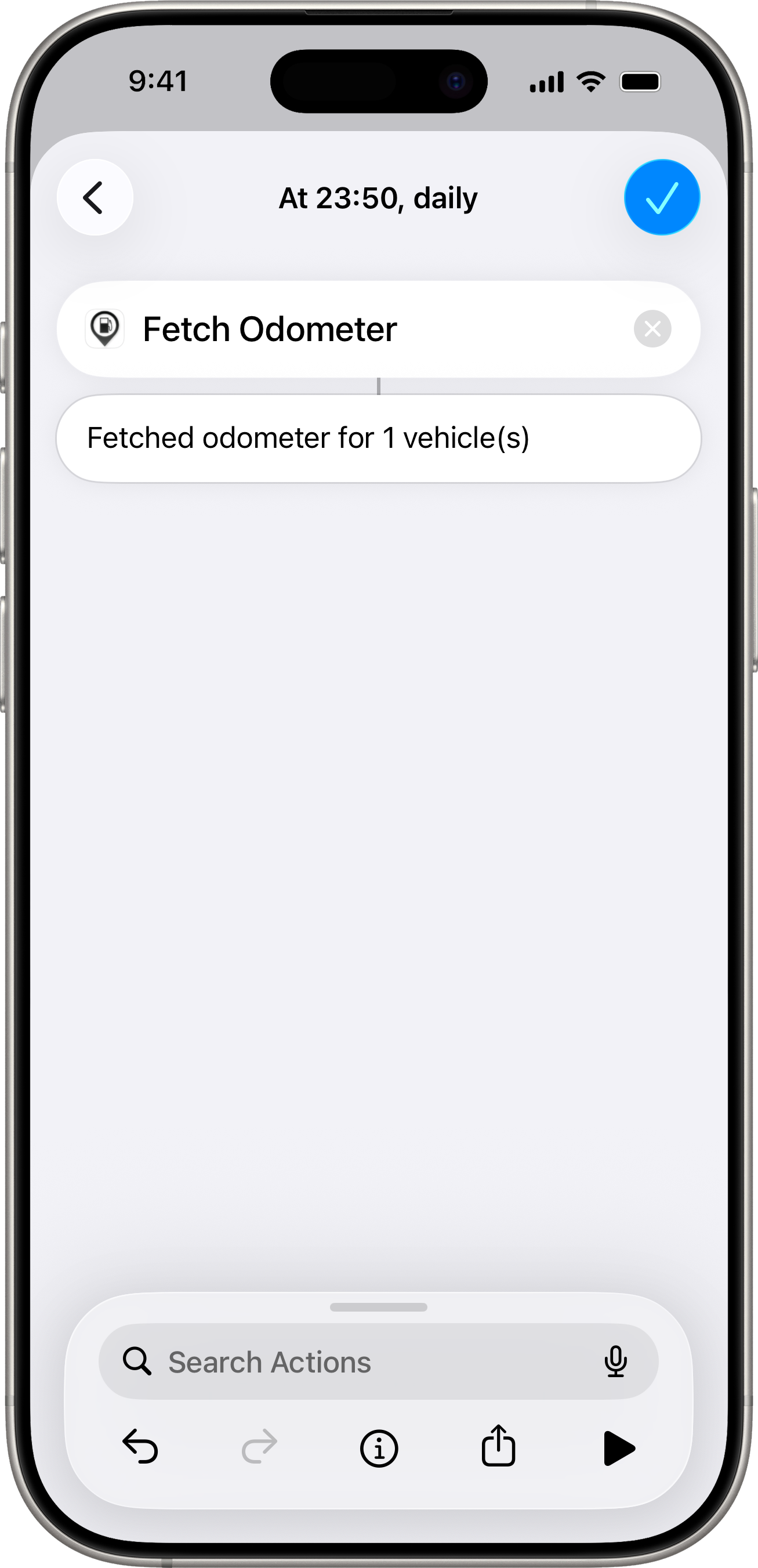
Typing Drivest into the action search filters the list down to the Fetch Odometer action immediately, so you don’t have to scroll through the full action library. Once the action is configured, it displays a small confirmation subtitle such as “Fetched odometer for 1 vehicle(s)” — a quick way to verify that a vehicle is actually selected before you save. The finished automation then appears under Personal on the Automation tab, summarised by its trigger and action (for example “At 23:50, daily — Fetch Odometer”), and runs silently from there on.
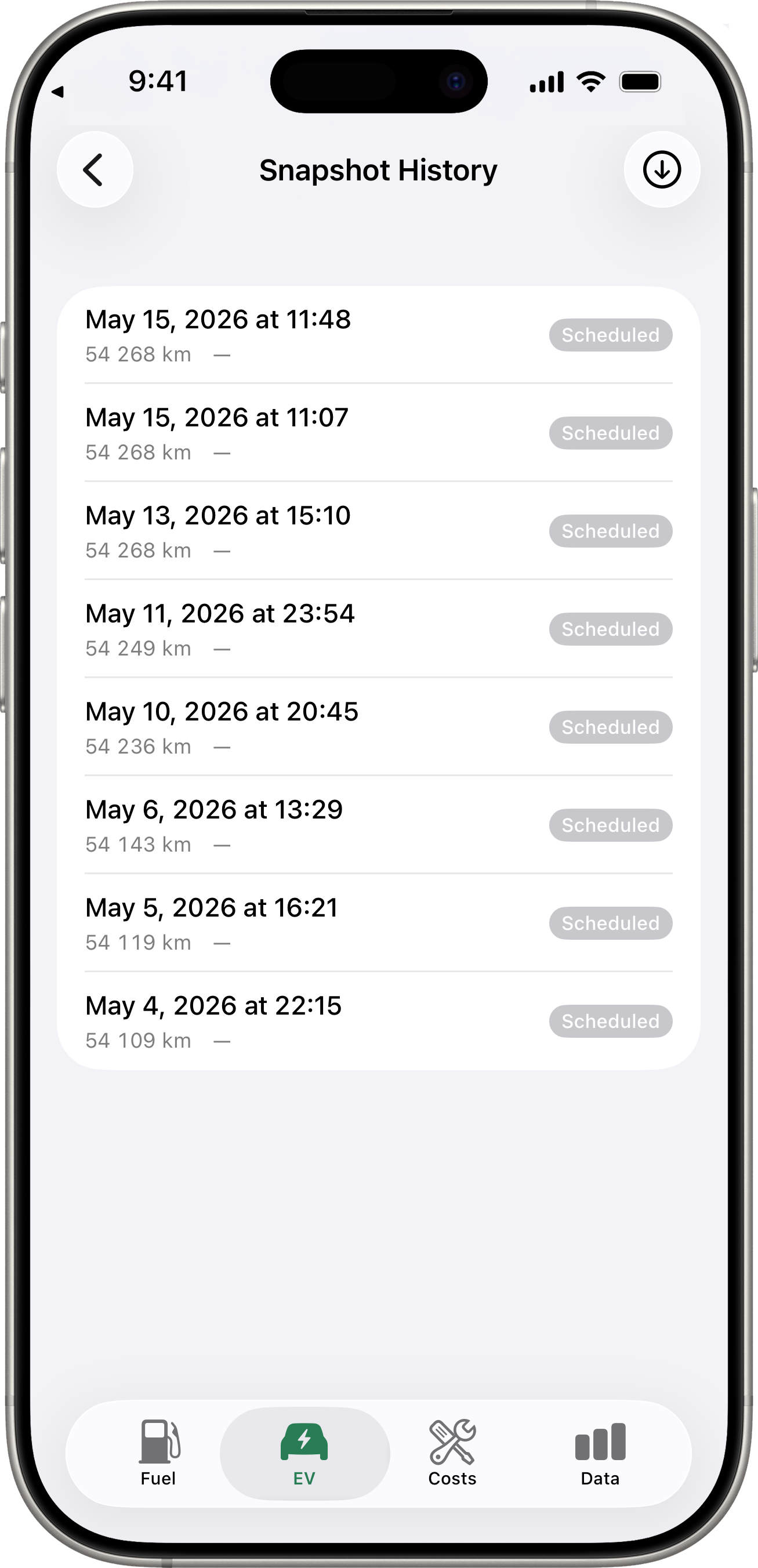
Every successful run is recorded in the vehicle’s Snapshot History with a Scheduled badge; see Reliability below for what happens when a run fails.
Reliability
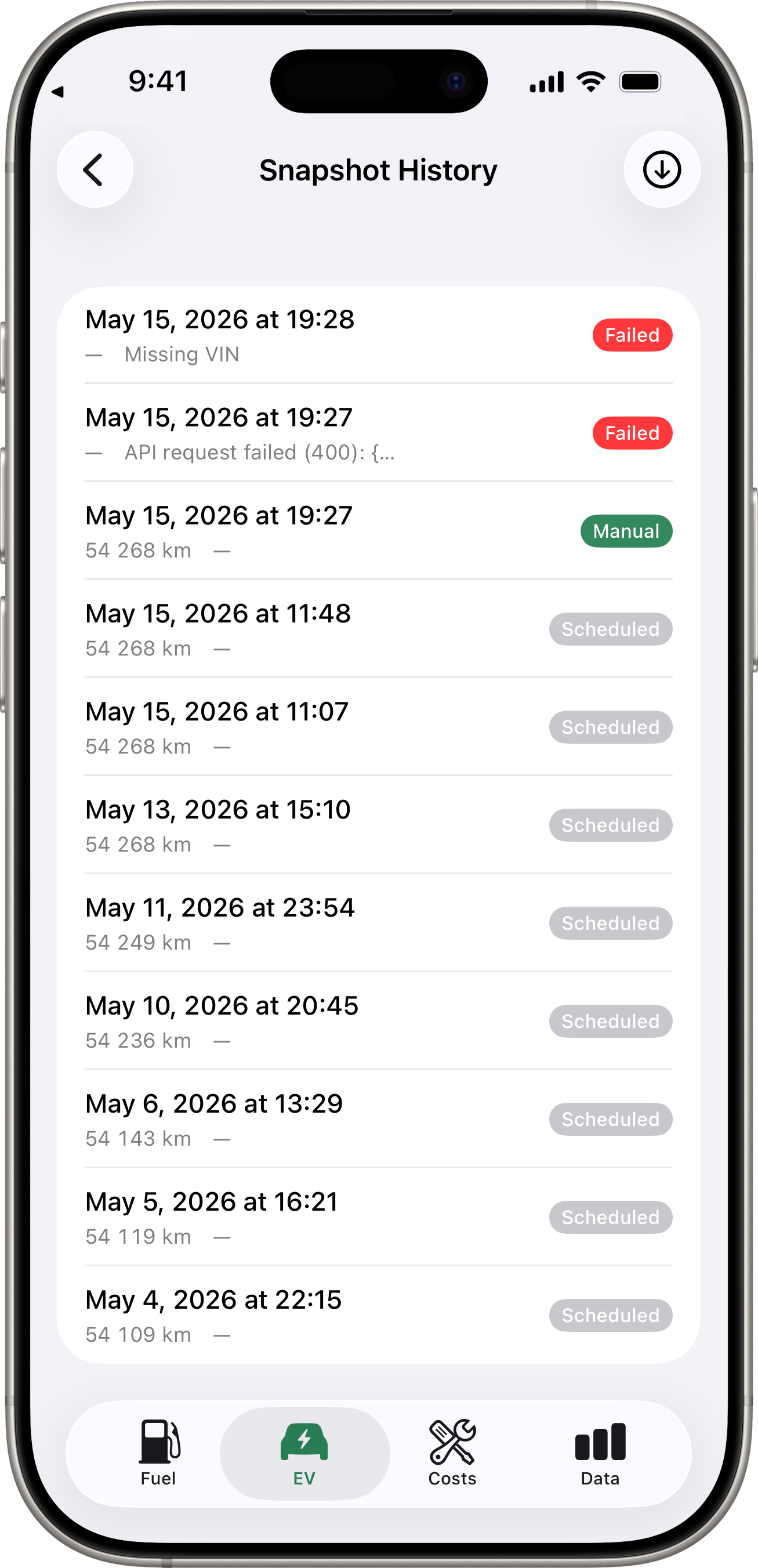
Every Shortcuts trigger creates a row in the Snapshot History for the vehicle. The badge tells you how the fetch was triggered and whether it succeeded:
- Scheduled (grey) — a routine background or Shortcuts fetch that succeeded.
- Manual (accent) — a user-triggered fetch from inside the app.
- Failed (red) — the fetch reached Drivest but couldn’t complete. The row’s subtitle carries the underlying error message; common reasons include:
- Volvo / Toyota token not configured — no integration is set up for this make.
- Keychain locked — device must be unlocked at least once after boot — a background fetch fired while the device was still locked after a reboot. The next fetch after you unlock the device once will succeed.
- Manufacturer-side errors such as HTTP 429 (rate limit) or 5xx (server error).
If the API is rate-limited, temporarily unavailable, or the network drops, Drivest:
- Retries the call up to three times with a short back-off (1s, then 2s).
- If retries don’t recover, inserts a snapshot anyway with a red Failed badge and the underlying error message.
This means no Shortcuts trigger is silently dropped — every attempt leaves a visible record. Failed rows are kept indefinitely (or until the 2-year purge cutoff) so you can see attempts even when they didn’t succeed.
Privacy
All communication with manufacturer APIs happens directly between your device and their servers. The developer of Drivest never sees your credentials or vehicle data. See the Privacy Policy for full details.