
Backup & Restore
← All Documentation (v1.1)
You're viewing the docs for Drivest v1.1. View the latest documentation.
Drivest lets you export and import your vehicle data using .drivestbackup files. This is useful for creating backups or transferring data between devices.
Exporting Data
- Go to Settings > Manage Vehicles.
- Tap the vehicle you want to export.
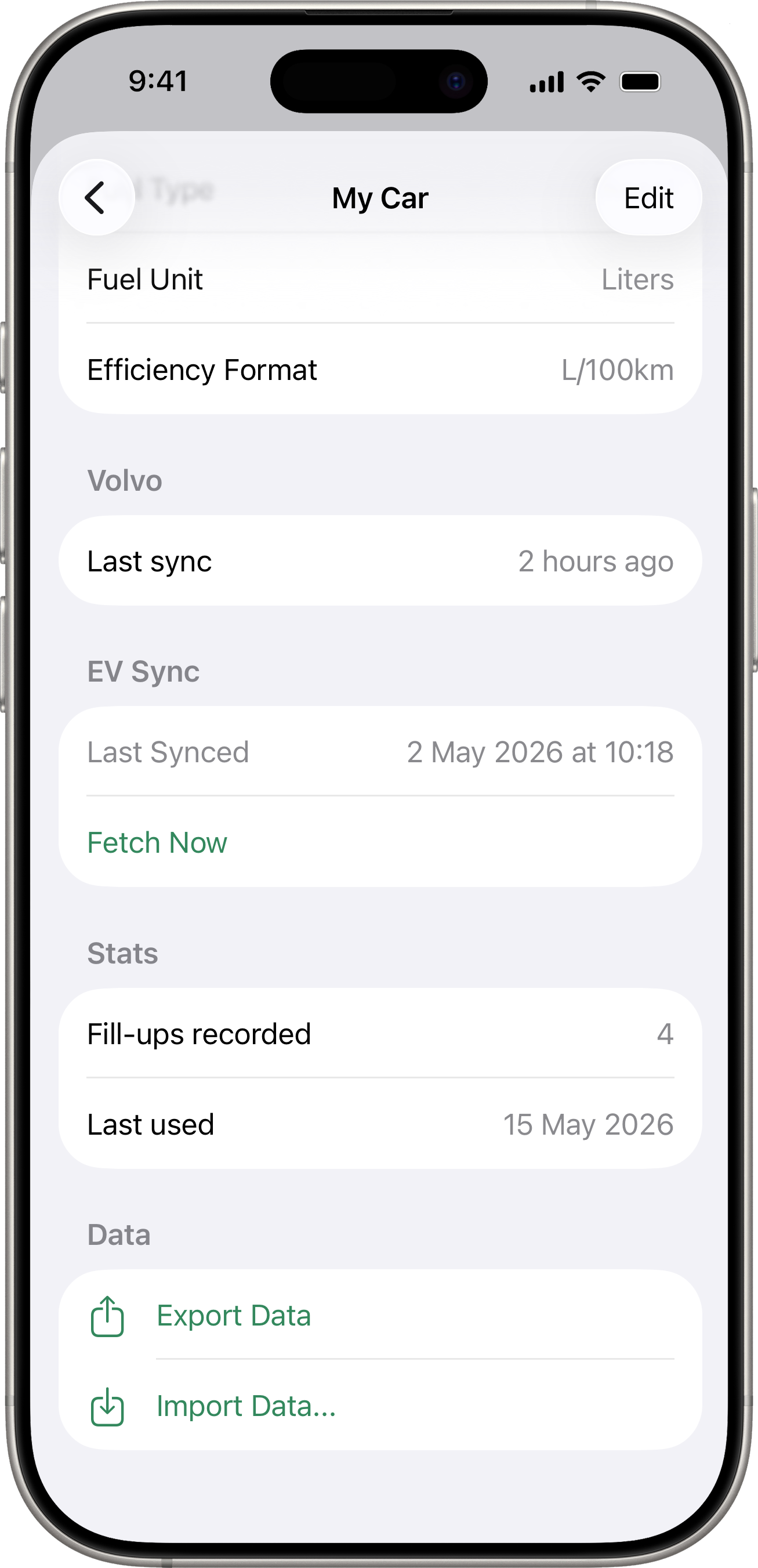
- In the vehicle detail screen, scroll to the Data section.
- Tap Export Data.
- Choose where to save or share the file using the iOS share sheet (e.g. save to Files, send via AirDrop, email).
The export creates a .drivestbackup file containing all data for that vehicle: fill-ups, costs, reminders, photos, and attachments.
Importing Data
There are two ways to import:
From the vehicle detail screen
- Go to Settings > Manage Vehicles.
- Tap the vehicle you want to import into.
- Scroll to the Data section.
- Tap Import Data… and select a
.drivestbackupfile.
By opening a file
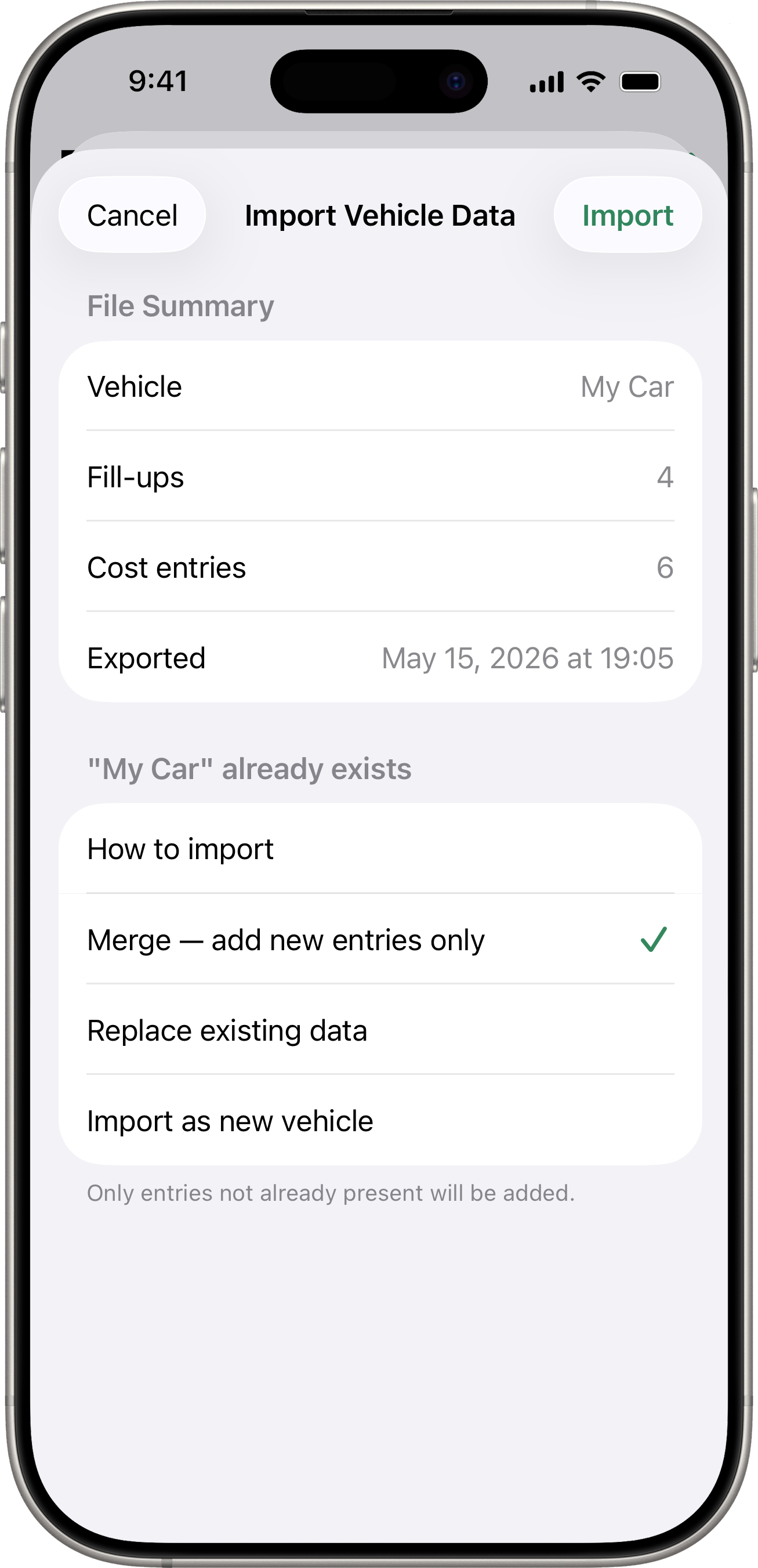
Tap any .drivestbackup file on your device (e.g. from the Files app or an email attachment). Drivest will open and show an import preview.
Import Preview
Before importing, the app shows a preview of the data in the file and lets you choose an import strategy:
- Merge — adds the imported data alongside your existing records. Duplicate entries are skipped.
- Replace — replaces the vehicle’s existing data with the imported data.
Review the preview carefully before confirming.
What’s Included in a Backup
- Vehicle information (name, make, model, VIN, settings)
- All fill-up records with photos and GPS coordinates (when captured)
- All cost entries with photos and file attachments
- Reminders
- Electricity bills (for EV vehicles)
- Energy snapshots (odometer + battery state of charge fetched from connected services)
What’s Not Included
- App-wide settings (currency, categories, appearance)
- Connected service credentials (authentication tokens)
- The on-device cache of receipt photos beyond what’s attached to a record
Tips
- Export your data regularly, especially before updating iOS or switching devices.
- Store backups in iCloud Drive or another cloud service for safekeeping.
- You can export and import individual vehicles — there is no “export all” option, so back up each vehicle separately.