
Cost Tracking
Adding a Cost
- Go to the Costs tab.
- Tap the + button.
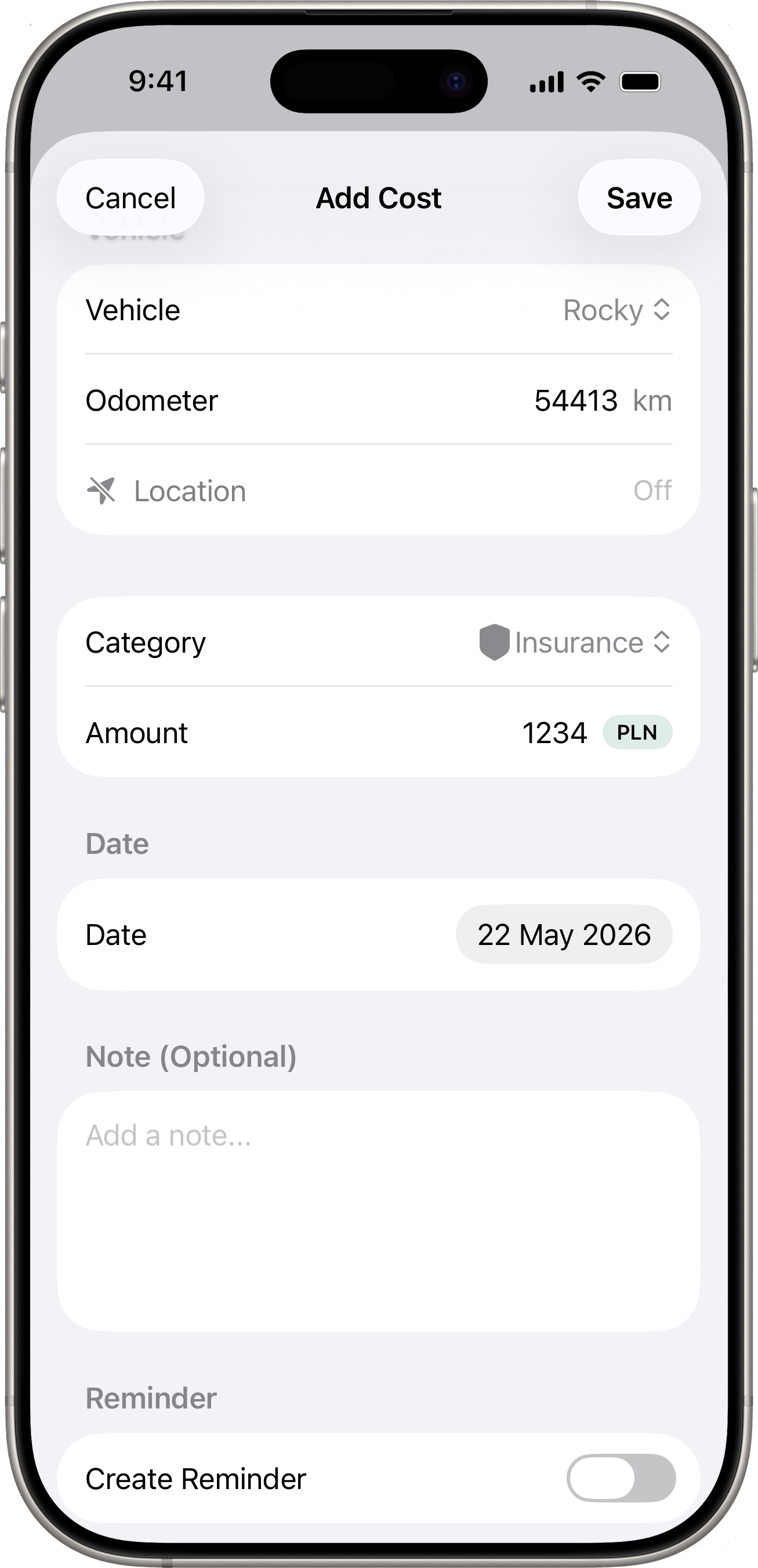
- Fill in the details (the Vehicle section sits at the top so it stays visible while you scroll the rest of the form):
- Vehicle (when you have multiple vehicles) — pick the car this cost belongs to.
- Odometer — optional mileage reading at the time of the cost. If the vehicle is connected (Volvo / Toyota with the integration set up), this field auto-populates from the latest snapshot when you change vehicles.
- Location — auto-captured GPS, with the same toggle / refresh / long-press behaviour as on the Fuel form. See Fuel Tracking → Location Capture.
- Category — select a category (e.g. Insurance, Service, Tolls, Wash, Parking, Maintenance, Tickets).
- Amount — the cost amount (Category + Amount share one section to save vertical space).
- Date — when the expense occurred.
- Note — optional description.
- Reminder — optionally create a reminder for this expense (see Reminders).
- Photos — attach photos of receipts or documents.
- Files — attach document files (e.g. PDF invoices).
- Tap Save.
Why odometer and location?
When a cost is tagged with mileage, future Drivest features can correlate spend with kilometres driven (cost-per-km style analyses) the same way fill-ups and charging sessions already do. When a cost carries GPS, it appears on the unified Data → Map view as an orange wrench icon — so your mechanic shops, car washes, parking lots, and tolls land on the same map as your gas stations. Both fields are optional; leaving them empty is fine for costs where they’re not relevant (e.g. an annual insurance payment).
Disabling location for a single entry
Tap the leading 📍 icon on the Location row to flip it to a slashed icon — capture turns off, the row collapses to “Location · Off”, and no GPS is persisted for this entry. Useful for purely administrative costs paid online from home.
Categories
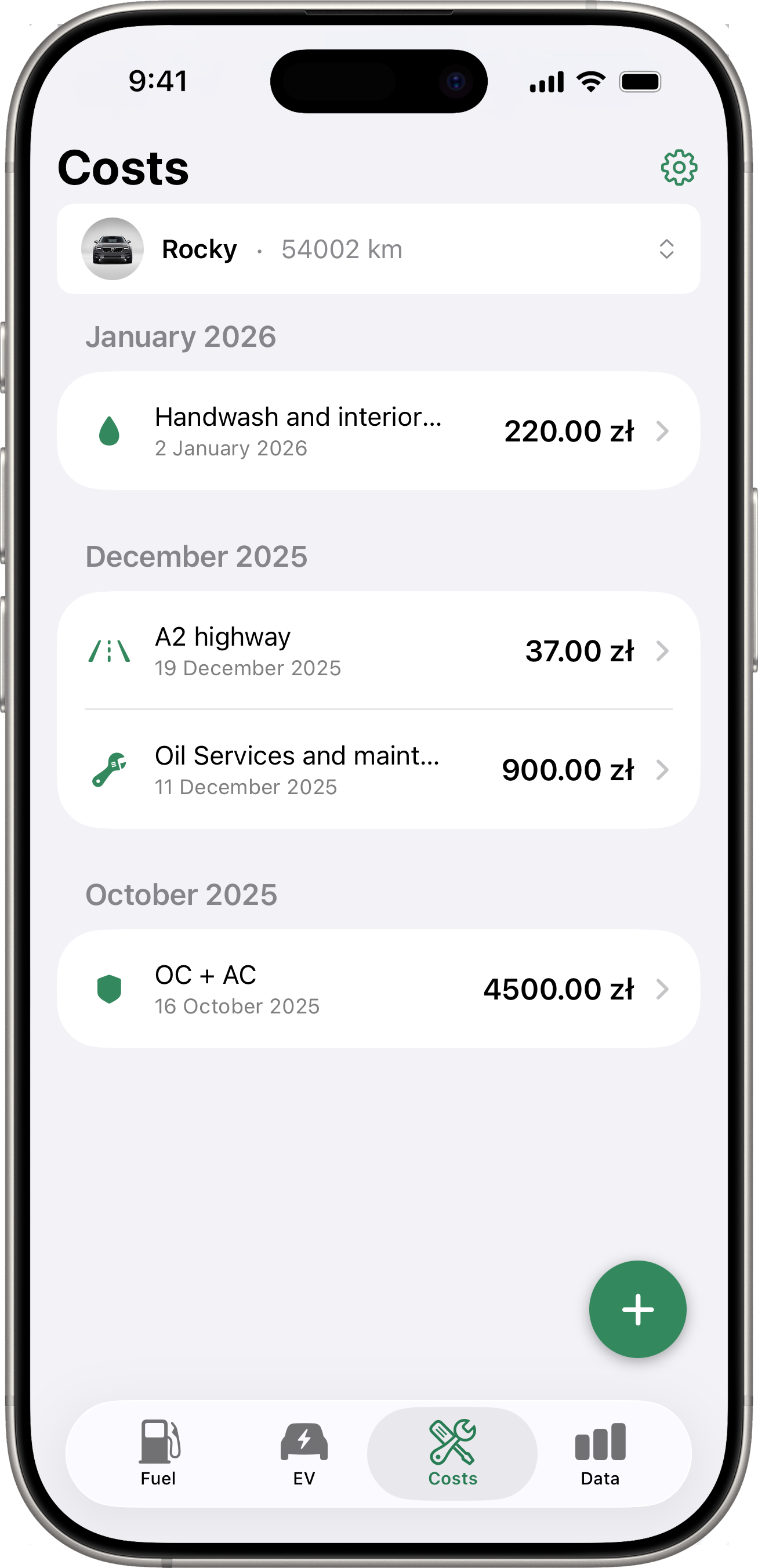
The app comes with built-in categories:
- Insurance
- Service
- Tolls
- Wash
- Parking
- Maintenance
- Tickets
Custom Categories
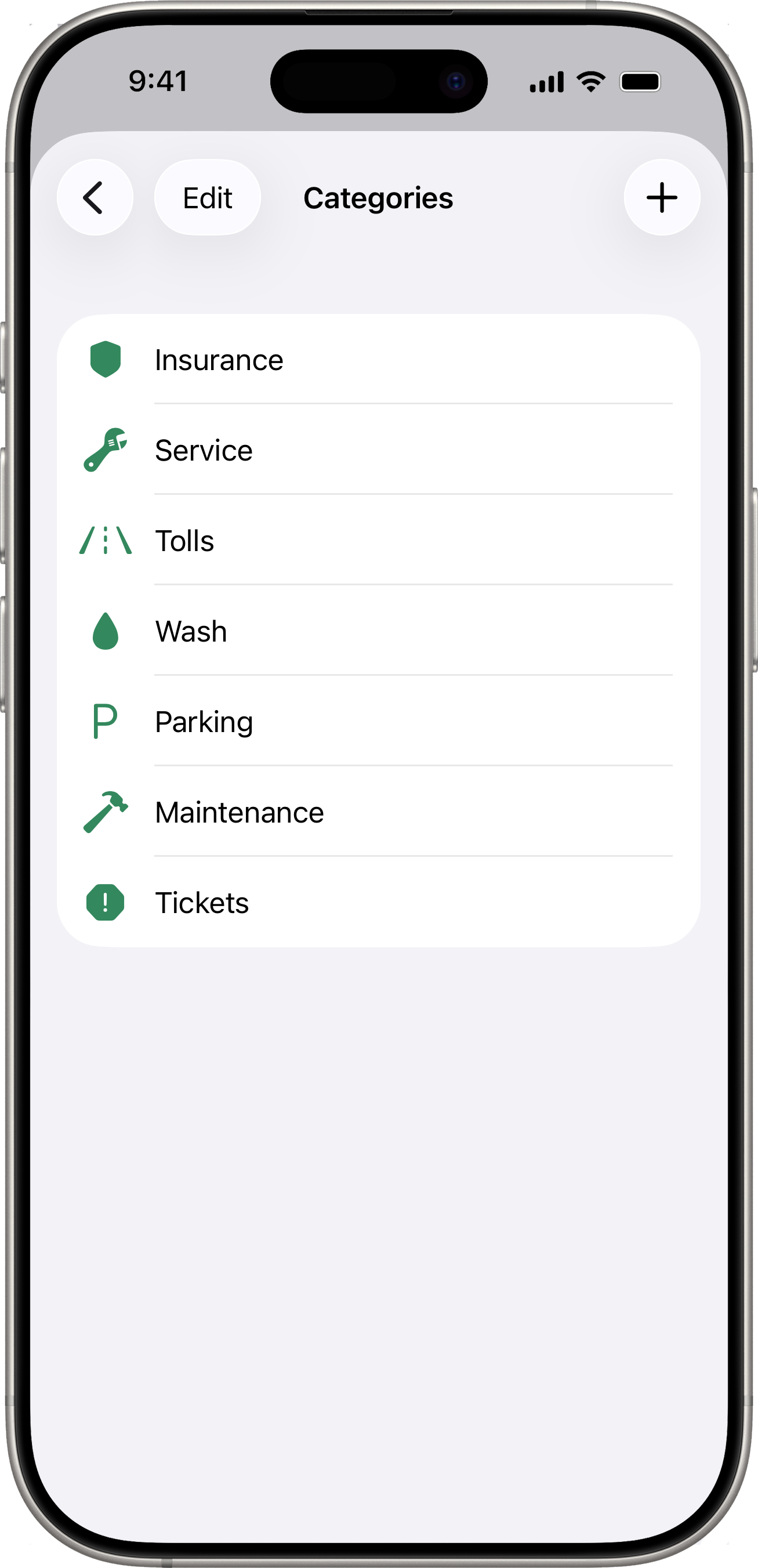
You can create your own categories and reorder or delete existing ones:
- Go to Settings > Categories.
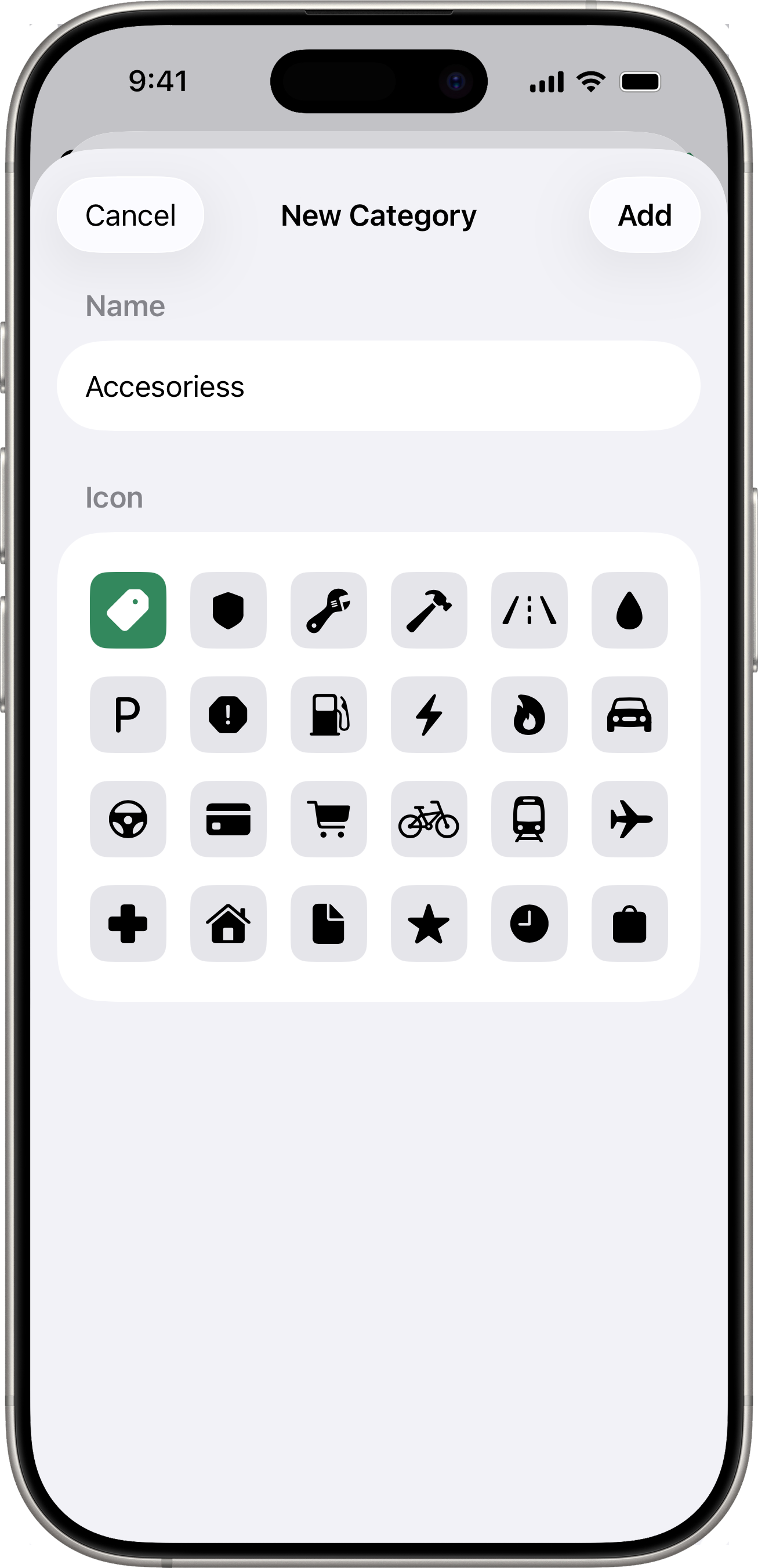
- Tap + to add a new category.
- Enter a name and choose an icon.
- Tap Add.
To reorder categories, tap Edit and drag them into your preferred order. To delete a category, swipe left or use the Edit mode.
Multi-Currency Support
If you have multiple currencies configured, a currency selector appears next to the amount field. The cost will be recorded with the selected currency and its exchange rate.
Editing and Deleting
- Tap any cost entry in the list to view its details. The detail view shows odometer and location only when those fields are present.
- Tap Edit to modify a cost. The same Vehicle section (with odometer at the top) is at the top of the Edit form for parity with Add.
- Swipe left on a cost entry to delete it.